How to Setup Throttle Mid & Throttle Expo in Betaflight
FPV Drone Guides & Tutorials
Quick Summary:
If your FPV drone build and setup feels too sensitive or hard to control, learning how to setup throttle mid throttle expo in betaflight can completely transform your flying experience. Throttle Mid, Hover Point, and Throttle Expo work together to give you smooth, precise throttle control without sacrificing performance. This comprehensive guide from Mall of Aviation will walk you through every step of how to setup throttle mid throttle expo in betaflight for perfect hover control and buttery-smooth altitude adjustments.
How to Setup Throttle Mid & Throttle Expo in Betaflight: Master Precise Throttle Control
When your quad is too powerful, even a tiny movement on the throttle stick can send it from falling to skyrocketing instantly. This makes smooth flying extremely difficult — especially for freestyle, cinematic shots, or flying through tight gaps. That is exactly why Betaflight provides advanced throttle control features like Throttle Mid, Throttle Expo, and the newer Hover Point settings. If you are new to tuning, you can first learn Betaflight firmware setup before adjusting these parameters. Mastering how to setup throttle mid throttle expo in betaflight is one of the most underrated skills in advanced FPV tuning techniques, yet it can make the difference between a drone that feels twitchy and unpredictable and one that responds exactly how you expect.
In this complete guide by Mall of Aviation, you will learn how to configure these settings step-by-step and achieve smooth, precise throttle control without sacrificing performance. Whether you are a beginner struggling to maintain altitude or an experienced pilot looking for smoother cinematic shots, understanding how to setup throttle mid throttle expo in betaflight will elevate your flying to the next level.
In This Guide
Why Use Throttle Mid & Expo in Betaflight
Before diving into how to setup throttle mid throttle expo in betaflight, it is important to understand why these settings exist. Every FPV pilot has experienced the frustration of a twitchy throttle. You want to maintain a steady altitude, but the slightest stick movement sends the drone shooting upward or dropping suddenly. This is especially problematic on high-power FPV drone frames and builds where the throttle response is extremely aggressive.
There are multiple ways to reduce throttle sensitivity, but most come with significant drawbacks:
- Throttle scaling: Reduces maximum power, limiting your ability to punch out of trouble.
- Radio curves: Reduces stick resolution, making fine adjustments harder.
- Motor output limiting: Caps overall performance.
Best Solution: Use Throttle Mid and Throttle Expo in Betaflight. This method improves control WITHOUT sacrificing performance. When you properly execute how to setup throttle mid throttle expo in betaflight, you get better hover control, smoother altitude adjustments, and more precise flying overall.
Unlike other methods that simply limit power, Throttle Mid and Expo reshape the throttle curve to give you finer resolution around the hover point while maintaining full power at the top end. This means you can make small adjustments for cinematic shots and still have the punch for aggressive freestyle maneuvers when needed. The beauty of how to setup throttle mid throttle expo in betaflight lies in its ability to give you the best of both worlds: precision where you need it and power where you want it.
How to Setup Throttle Mid, Hover Point & Throttle Expo in Betaflight
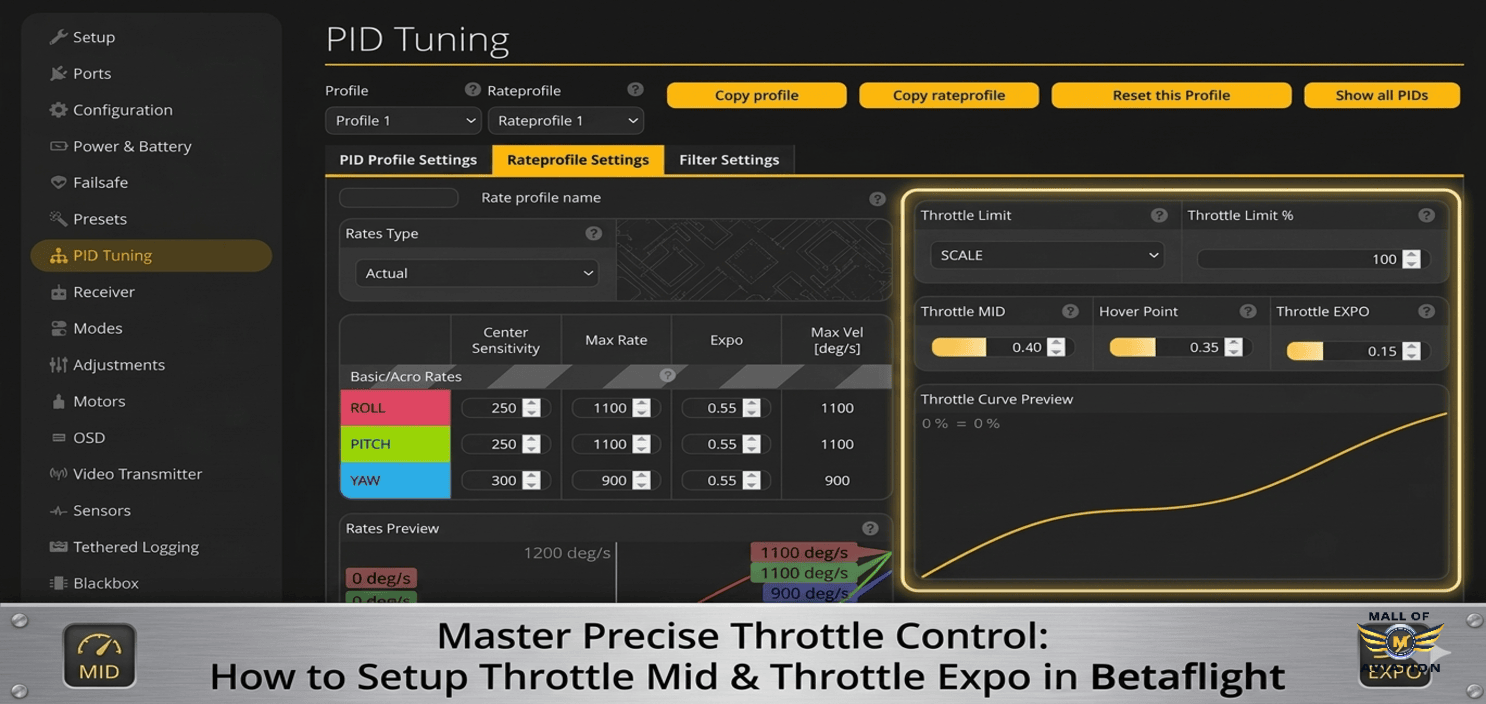
Starting with Betaflight version 2025.12, a new Hover Point setting was introduced to make throttle tuning more intuitive. Understanding how to setup throttle mid throttle expo in betaflight requires familiarity with all three parameters. The default values are:
- Throttle Mid = 0.50 (50% stick position)
- Hover Point = 0.50 (50% throttle output)
- Throttle Expo = 0 (linear response)
With these default settings, the throttle response is completely linear. This means 25% stick equals 25% throttle output, 50% stick equals 50% output, and so on. While linear response works for some pilots, most find that reshaping this curve around their specific hover point yields much better control.
The goal of how to setup throttle mid throttle expo in betaflight is to create a non-linear curve that gives you maximum resolution where you need it most—around your hover point—while maintaining full power at the extremes. This is achieved by carefully balancing Throttle Mid, Hover Point, and Throttle Expo based on your specific drone and flying style.
Step 1 — Find Hover Throttle
The first and most critical step in how to setup throttle mid throttle expo in betaflight is finding your drone’s actual hover throttle. This is the throttle percentage at which your drone maintains a steady altitude without climbing or descending. Follow these steps:
- Find an open outdoor area with no obstacles.
- Arm your drone and take off to a safe altitude (about 3 to 5 meters).
- Look at your OSD (On-Screen Display) to see the throttle percentage.
- Make small adjustments until the drone maintains a steady hover.
For example, if at 24% throttle the drone is slowly descending, and at 26% throttle it is slowly climbing, then your true hover throttle is 25%. This value becomes your Hover Point setting.
In Betaflight, set:
Hover Point = 0.25
Tip: This is the most important step in how to setup throttle mid throttle expo in betaflight. Everything else depends on an accurate hover value. Take your time and repeat the hover test multiple times to ensure accuracy. If you are flying with a FPV action camera like Caddx analog camera, test with the camera installed, as the added weight will change your hover point.
For newer Betaflight versions, you can also use the OSD to monitor throttle output while hovering. Some pilots prefer to use Betaflight blackbox logging to get even more precise hover data, but the OSD method works well for most users. Accurate hover data is the foundation of successful how to setup throttle mid throttle expo in betaflight.
Step 2 — Set Throttle Mid
Once you have identified your Hover Point, the next step in how to setup throttle mid throttle expo in betaflight is setting Throttle Mid. This parameter defines where on your stick travel you want the hover point to occur.
Most pilots prefer to have the hover point somewhere between 30% and 40% stick position. This allows for plenty of resolution below hover for smooth descents and above hover for controlled climbs. Here is how to determine your Throttle Mid:
- If your hover throttle is 25% and you want hover at 35% stick position → set Throttle Mid = 0.35
- If your hover throttle is 20% and you want hover at 30% stick position → set Throttle Mid = 0.30
In our example with hover at 25% and desired stick position at 35%:
Throttle Mid = 0.35
This configuration means that when your throttle stick is at 35%, your drone is outputting 25% throttle (hover). This gives you more control in the lower range and better cruising around mid-stick.
Why 35%? Placing hover around 35% stick gives you approximately 35% of stick travel for descending and 65% for climbing. This is ideal for most freestyle and cinematic flying styles. If you prefer more resolution for descents, you can set Throttle Mid higher (e.g., 0.40). If you want more resolution for climbing, set it lower (e.g., 0.30).
Experienced pilots often adjust Throttle Mid based on their flying style. Cinematic pilots who spend more time cruising at altitude may prefer a higher Throttle Mid to have more resolution for small altitude corrections. Racing pilots may prefer a lower Throttle Mid to keep more resolution at higher throttle ranges where they spend most of their time. Finding your ideal Throttle Mid is a personal journey within how to setup throttle mid throttle expo in betaflight.
Step 3 — Set Throttle Expo
Throttle Expo controls the sensitivity curve around your Throttle Mid point. This is where the magic happens in how to setup throttle mid throttle expo in betaflight. Throttle Expo determines how gentle or aggressive the throttle response feels around the hover point.
A good starting point for most pilots is:
Throttle Expo = 0.65
The effects of Throttle Expo are:
- Higher Expo (0.60 to 0.80): Creates a flatter curve around hover, making the throttle feel smoother and less sensitive. Ideal for cinematic flying, beginners, and pilots who struggle with twitchy throttle.
- Lower Expo (0.20 to 0.50): Creates a sharper curve, making the throttle feel more responsive and aggressive. Ideal for experienced pilots who want immediate power response.
- Expo = 0: Linear response with no shaping around the hover point.
Warning: Too high expo (above 0.85) can make the throttle feel sluggish and disconnected. You want enough sensitivity to feel connected to the drone but enough smoothing to make small adjustments easy. Finding the right balance is the essence of how to setup throttle mid throttle expo in betaflight.
With Throttle Mid set to 0.35, Hover Point at 0.25, and Throttle Expo at 0.65, your throttle curve becomes non-linear. You will have fine control around hover while maintaining full power at the top end. This is the sweet spot for most FPV pilots who have mastered how to setup throttle mid throttle expo in betaflight.
Fine Tuning Throttle Mid & Throttle Expo
Once you have your baseline settings, fine-tuning is the next phase of how to setup throttle mid throttle expo in betaflight. Every pilot and every drone is different, so expect to make small adjustments based on your preferences.
Throttle Mid Adjustment
- If the drone descends too slowly when you lower the stick: Increase Throttle Mid slightly (by 0.01 to 0.02). This shifts the curve so that more stick movement is required to maintain hover, giving you more resolution for descending.
- If the drone drops too fast when you lower the stick: Decrease Throttle Mid slightly. This makes the hover point occur at a lower stick position, meaning you have less stick travel for descending but finer control.
- If cruising feels uncomfortable: Adjust Throttle Mid so that your typical cruising throttle sits comfortably in the middle of your stick travel.
Throttle Expo Adjustment
- For cinematic smooth flying: Increase Throttle Expo to 0.70 or 0.75. This flattens the curve around hover, making micro-adjustments effortless.
- For aggressive freestyle: Decrease Throttle Expo to 0.50 or 0.55. This gives you quicker throttle response for punch-outs and rapid altitude changes.
- If the throttle feels numb: Reduce Expo. If the throttle feels too twitchy, increase Expo.
Pro Tip: When fine-tuning how to setup throttle mid throttle expo in betaflight, make adjustments in small steps (0.01 to 0.02). Fly for at least one battery pack between adjustments to get a true feel for the change. Making large jumps can make it hard to identify what is working and what is not.
Here is an example of a well-tuned setup for a typical 5-inch freestyle drone:
- Throttle Mid: 0.32
- Hover Point: 0.26
- Throttle Expo: 0.65
This configuration provides excellent resolution around the hover point while maintaining crisp response for freestyle tricks. The hover point at 26% throttle with stick at 32% gives you approximately 32% of stick travel for descending and 68% for climbing—a well-balanced curve that exemplifies proper how to setup throttle mid throttle expo in betaflight.
Older Betaflight Versions (Before 2025.12)
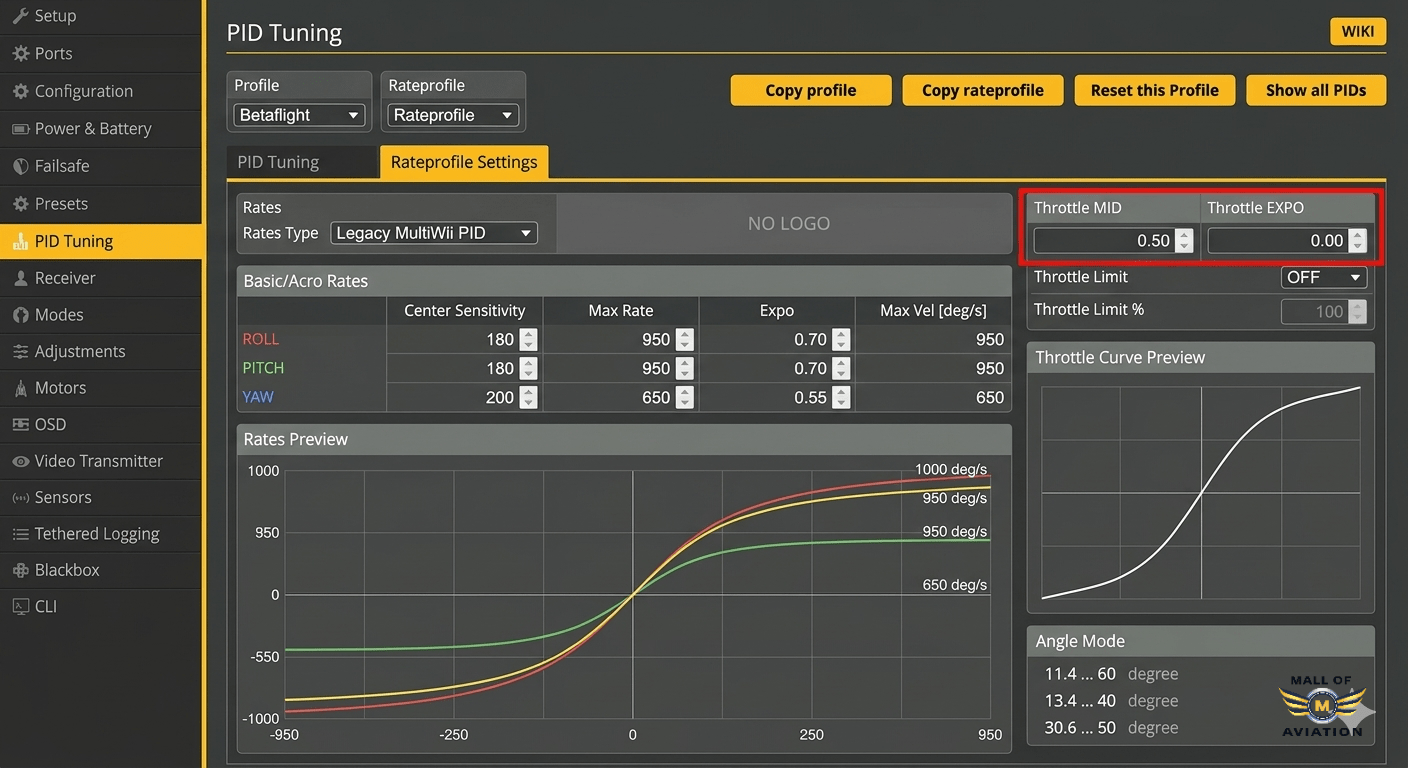
If you are using an older version of Betaflight that does not have the Hover Point setting, the process for how to setup throttle mid throttle expo in betaflight is slightly different. In these versions, Throttle Mid serves both purposes—it defines where your hover sits on the stick.
For older Betaflight versions:
- Throttle Mid should be set directly to your desired stick position for hover (typically 0.30 to 0.40).
- Throttle Expo works the same way, starting at 0.65 and adjusting from there.
For example, if your hover throttle is 25% and you want that to occur at 35% stick, set Throttle Mid = 0.35. This combines both the Hover Point and Throttle Mid functions into one parameter.
Note: The newer Betaflight version (2025.12 and later) with separate Hover Point is much easier and more accurate. If possible, update to the latest version for the best experience when learning how to setup throttle mid throttle expo in betaflight. The separation of Hover Point and Throttle Mid allows for more precise tuning and makes it easier to share settings between different drones with different power levels.
Throttle Value in OSD Looks Wrong After Setup?
One common issue pilots encounter after completing how to setup throttle mid throttle expo in betaflight is that the OSD throttle percentage no longer matches their actual hover point. This can be confusing but is actually expected behavior.
The OSD displays the throttle output being sent to the motors, while your Throttle Mid and Expo settings are reshaping the relationship between your stick input and motor output. After tuning, a 35% stick position might result in 25% motor output (hover). Your OSD will show 25% throttle, which is correct for the motor output.
To verify your tuning is working correctly:
- Reset settings temporarily to test the linear curve
- Use Blackbox logs to see the relationship between stick input and motor output
- Focus on how the drone feels rather than the OSD number
If the OSD throttle value at hover is significantly different from what you expected, you can adjust your Hover Point accordingly. The key is to trust the feel of the drone—if it hovers comfortably with small stick movements, your tuning is working. This is the ultimate validation of successful how to setup throttle mid throttle expo in betaflight.
Frequently Asked Questions About Throttle Mid & Expo
1. What is Hover Point in Betaflight?
Hover Point is a setting introduced in Betaflight 2025.12 that defines your drone’s actual throttle percentage required for stable hover. It is the foundation for proper how to setup throttle mid throttle expo in betaflight and allows you to separate the physical hover value from your desired stick position.
2. What is the best Throttle Expo value?
For most pilots, a Throttle Expo value between 0.50 and 0.70 works best. Beginners and cinematic pilots often prefer 0.65 to 0.75 for smoother control. Aggressive freestyle pilots may prefer 0.45 to 0.55 for faster response. The best way to learn how to setup throttle mid throttle expo in betaflight is to start at 0.65 and adjust based on your feel.
3. Does Throttle Expo reduce maximum power?
No. Unlike throttle scaling, Throttle Expo only reshapes the curve around the hover point. Your maximum throttle output at 100% stick remains full power. This is one of the biggest advantages of how to setup throttle mid throttle expo in betaflight—you get better control without sacrificing performance.
4. Is Throttle Expo useful for beginners?
Absolutely. Beginners benefit enormously from proper throttle tuning. A well-configured Throttle Expo makes the drone feel less twitchy and more forgiving, allowing new pilots to focus on learning basic maneuvers instead of fighting an overly sensitive throttle. Learning how to setup throttle mid throttle expo in betaflight early can significantly speed up your progression.
5. How do I know if my Throttle Mid is set correctly?
When your Throttle Mid is set correctly, you should feel comfortable and in control during all phases of flight. At hover, small stick movements should result in smooth altitude changes. If you feel like you are constantly fighting to maintain altitude, your Throttle Mid may need adjustment. The best way to master how to setup throttle mid throttle expo in betaflight is to fly, observe, and make small adjustments.
6. Can I use Throttle Expo with RPM filtering?
Yes. Throttle Expo and RPM filtering work independently. Throttle Expo affects stick feel, while RPM filtering affects motor noise and flight performance. Both are important parts of a well-tuned quad.
7. Should I set Throttle Mid differently for different drones?
Yes. Different drones have different power-to-weight ratios and hover points. A lightweight 3-inch drone may hover at 15% throttle, while a heavy 5-inch with a GoPro may hover at 30%. When applying how to setup throttle mid throttle expo in betaflight to multiple drones, you should tune each one individually based on its specific hover point and power characteristics.
Final Thoughts: Master Your Throttle Control
Throttle tuning is one of the most underrated features in Betaflight. While many pilots spend hours tuning rates and filters, they often overlook the simple adjustments that can transform their throttle feel. By correctly setting Hover Point, Throttle Mid, and Throttle Expo, you can take your drone from feeling twitchy and unpredictable to smooth, precise, and completely under your control.
Remember the key steps in how to setup throttle mid throttle expo in betaflight:
- Find your true hover throttle using OSD or Blackbox
- Set Hover Point to match that value
- Choose a Throttle Mid that puts hover where you want it on the stick (usually 0.30 to 0.40)
- Start with Throttle Expo at 0.65 and adjust based on your feel
- Fine-tune in small increments and fly between adjustments
Take the time to tune your throttle properly. It takes only a few battery packs to dial in your settings, and the improvement in your flying experience will be immediate. Whether you are a beginner struggling to maintain altitude or an experienced pilot looking for smoother cinematic shots, mastering how to setup throttle mid throttle expo in betaflight will make every flight more enjoyable.
At Mall of Aviation, we are dedicated to helping FPV pilots build, tune, and fly with confidence. With the right settings and high-quality FPV drone components and electronics, you can unlock the full potential of your drone and enjoy every moment in the air.
Recommended Resources:
For more detailed tuning guides, visit the Betaflight Official Website and check out the comprehensive guides at Oscar Liang’s Betaflight Tuning Guide. You can also find high-quality FPV components at GetFPV and RaceDayQuads.