How to Setup Betaflight Turtle Mode (Flip Over After Crash)
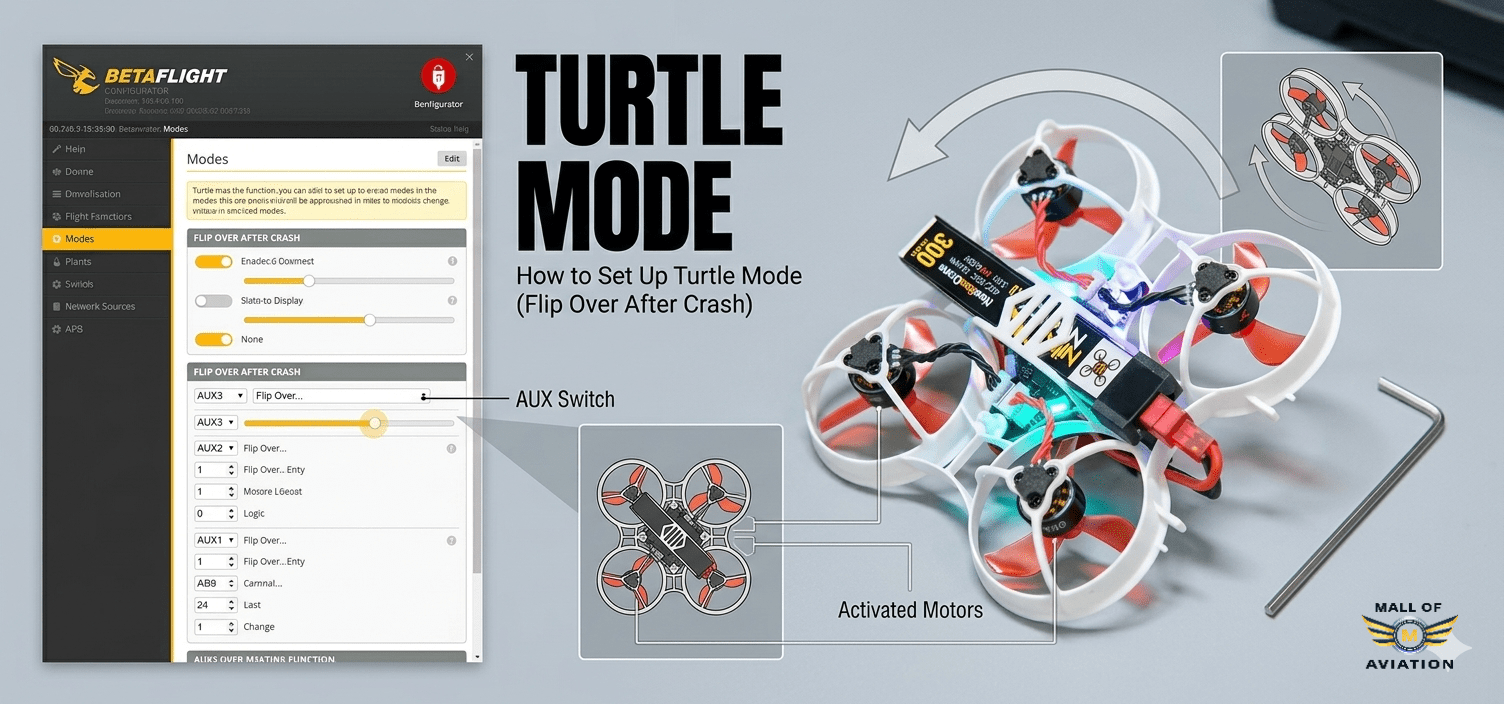
Quick Summary: Learning how to setup betaflight turtle mode (officially called Flip Over After Crash in Betaflight) lets your upside-down FPV drone flip itself upright at the flick of a switch — so you can keep flying without leaving your spot. This complete guide covers every step for how to setup betaflight turtle mode in Betaflight 2025.12 and later.
How to Setup Betaflight Turtle Mode (Flip Over After Crash) for FPV Drones – Complete 2026 Guide
Every FPV pilot knows the feeling: you push a little too hard, your quad tumbles, and now it’s sitting upside-down 40 metres away. You drop your FPV radio controller, jog across the field, flip it over, walk back — and lose two minutes of your session. Multiply that by a dozen crashes in an afternoon, and learning how to setup betaflight turtle mode stops being a novelty and starts being essential for your flying enjoyment.
Betaflight’s Flip Over After Crash feature — still widely called Turtle Mode — lets the drone right itself using controlled motor bursts, so you can recover from minor crashes without ever putting your transmitter down. If you want to master how to setup betaflight turtle mode correctly, you need to understand that the Betaflight 2025.12 update improved how the feature works once the quad lands upright, but that improved behavior requires a few extra setup steps that many guides skip over. This article from Mall of Aviation walks you through every step of how to setup betaflight turtle mode so you can get back in the air faster.
In This Guide: How to Setup Betaflight Turtle Mode
- What Is Turtle Mode in Betaflight?
- Know the Limitations Before You Setup Betaflight Turtle Mode
- Step 1 to Setup Betaflight Turtle Mode — Verify Accelerometer
- Step 2 to Setup Betaflight Turtle Mode — Confirm DShot Protocol
- Step 3 to Setup Betaflight Turtle Mode — Assign Dedicated Switch
- Step 4 to Setup Betaflight Turtle Mode — Set Max Arm Angle to 180°
- Step 5 to Setup Betaflight Turtle Mode — Enable OSD Flip Arrow
- Step 6 to Setup Betaflight Turtle Mode — Configure crashflip_rate
- How to Use Turtle Mode After You Setup Betaflight Turtle Mode
- Optional Auto Rearm When You Setup Betaflight Turtle Mode
- Troubleshooting After You Setup Betaflight Turtle Mode
- FAQs About How to Setup Betaflight Turtle Mode
What Is Turtle Mode in Betaflight? Understanding Before You Setup Betaflight Turtle Mode
Turtle Mode is a crash-recovery function built into Betaflight firmware. When your drone lands upside-down, activating the mode causes selected motors to briefly spin in reverse, rolling or pitching the airframe back onto its feet. Once the quad detects it is upright — thanks to the onboard accelerometer — the motors cut automatically, ready for a normal re-arm and takeoff. Learning how to setup betaflight turtle mode properly will save you countless walks of shame across the field.
The feature was originally introduced as “Turtle Mode” but Betaflight’s official label is now Flip Over After Crash. The community has largely stuck with the old name, so you’ll see both used interchangeably. When you learn how to setup betaflight turtle mode for Betaflight 2025.12, the recovery behavior has been significantly refined: motors now stop on their own after a successful flip rather than requiring the pilot to manually disarm, making the whole process faster and safer.
For freestyle pilots, racers, and anyone flying over open areas, knowing how to setup betaflight turtle mode can dramatically cut downtime after minor crashes and help keep your session flowing.
Know the Limitations Before You Setup Betaflight Turtle Mode
Before you learn how to setup betaflight turtle mode, you need to understand its hard limits. Knowing these limitations before your first use prevents frustration — and avoids the very real risk of burning out a motor or ESC.
It Requires DShot When You Setup Betaflight Turtle Mode
The feature relies entirely on the DShot digital ESC protocol to send motor-reversal commands. If you want to successfully setup betaflight turtle mode, your DShot-compatible ESC and flight controller stack must support DShot. Older analog protocols — PWM, Oneshot, Multishot — simply cannot carry the necessary signals. If your ESCs are running an analog protocol, Turtle Mode will not function at all. Drones with brushed motors are also incompatible, since brushed ESCs do not implement DShot.
Props Must Be Free to Spin When You Setup Betaflight Turtle Mode
After you setup betaflight turtle mode, remember that it only works when propellers can rotate without obstruction. On a flat, hard surface it is highly reliable. In thick grass, loose gravel, or after a heavy impact that bends a prop, the motors may stall trying to spin against resistance. Always use high-quality FPV LiPo batteries to ensure stable power during recovery. Stalled motors draw high current and can overheat within seconds — so if the quad doesn’t move after one or two brief attempts, stop and retrieve it manually.
Surface Matters When You Setup Betaflight Turtle Mode
- Works well: concrete, tarmac, dirt, short-cropped grass, wooden floors
- Mixed results: medium-length grass, gravel, carpet
- Avoid: deep grass, mud, thick foliage, water
Step 1 to Setup Betaflight Turtle Mode — Verify the Accelerometer Is Working
The accelerometer upgrade in Betaflight 2025.12 is what makes Turtle Mode so much better than it used to be. When you setup betaflight turtle mode correctly, the FPV flight controller uses accelerometer data to detect the moment the quad has returned to an upright orientation, then automatically cuts the motors — eliminating the old problem of the drone flopping back over from too much momentum.
None of that works if the accelerometer is not functioning correctly. Before you setup betaflight turtle mode, confirm it is active and calibrated.
How to check before you setup betaflight turtle mode:
- Connect your flight controller to Betaflight Configurator
- Open the Setup tab
- Physically tilt and rotate the drone in your hands
- The 3D model on screen should mirror your movements in real time
If the model is frozen or moves incorrectly when you try to setup betaflight turtle mode:
- Go to the Configuration tab and confirm Accelerometer is toggled on
- Try re-flashing Betaflight firmware for your target
- If the issue persists, the IMU sensor on the flight controller may be faulty
Important: Without a working accelerometer, your effort to setup betaflight turtle mode will be incomplete because the motor auto-stop behavior will not function. Turtle Mode will still activate, but motors will keep spinning after the flip — increasing the chance of overshoot or damage.
Step 2 to Setup Betaflight Turtle Mode — Confirm DShot Is Selected as Your ESC Protocol
This is the most common reason Turtle Mode fails to work at all. When you setup betaflight turtle mode, the feature is impossible without a DShot protocol active on your ESCs.
How to verify when you setup betaflight turtle mode:
- Open Betaflight Configurator and go to the Motors tab
- Look at the ESC/Motor Protocol dropdown
- Confirm it is set to DShot300 or DShot600
- Save and reboot if you need to change it
DShot300 is the most common choice and works reliably with the vast majority of modern ESCs. DShot600 is faster but offers minimal practical benefit for most flying styles. Either will support Turtle Mode fully once you setup betaflight turtle mode correctly.
If DShot options are greyed out or unavailable, update to a current Betaflight version and verify your firmware target supports DShot output on the motor outputs you’re using.
Step 3 to Setup Betaflight Turtle Mode — Assign Flip Over After Crash to a Dedicated Switch
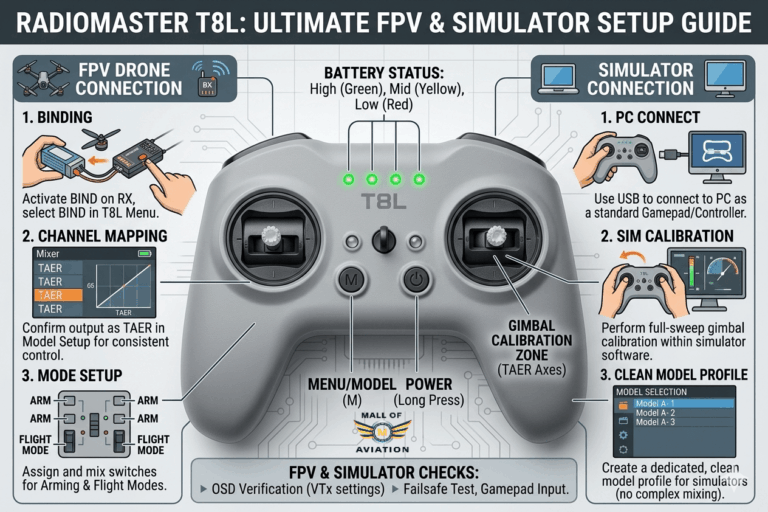
When you learn how to setup betaflight turtle mode, you must map Turtle Mode to a physical switch on your transmitter. Since it needs to be activated precisely (never accidentally, and never sharing a channel with arming or flight modes), choose a clearly identifiable switch you won’t confuse under pressure.
On Your Transmitter Before You Setup Betaflight Turtle Mode
- Enter the Mixer / Mixes menu on your radio
- Select an unused output channel (for example CH7 or CH8)
- Assign a physical switch as the source for that channel
- Verify the channel output moves when you flip the switch
In Betaflight Configurator to Complete Your Turtle Mode Setup
- Open the Modes tab
- Scroll to find Flip Over After Crash
- Click Add Range
- Select the AUX channel that matches your transmitter switch (e.g. AUX 3 = CH7)
- Set the activation range so the yellow indicator dot moves inside it when you flip the switch
- Click Save
Best Practice: When you setup betaflight turtle mode, assign it to a two-position switch that returns to the off position under spring tension, or one you will deliberately flip back to normal before attempting takeoff. You do not want Turtle Mode accidentally active when you arm for a normal flight.
Step 4 to Setup Betaflight Turtle Mode — Set Maximum Arm Angle to 180 Degrees
Betaflight includes a safety guard called Maximum Arm Angle that prevents the drone from arming when it is tilted beyond a set threshold — typically around 25-30° by default. This is sensible protection against accidentally arming a drone that is leaning against something or held at an angle.
The problem: when your quad is upside-down and you need to activate Turtle Mode, it is tilted at exactly 180°. The default arm angle guard will block arming completely. You need to disable it as part of learning how to setup betaflight turtle mode.
How to set it when you setup betaflight turtle mode:
- Open the Configuration tab in Betaflight Configurator
- Find the Arming section — look for Maximum Arm Angle
- Change the value to 180
- Click Save and Reboot
Safety Note: Setting arm angle to 180° removes the protection that stops accidental arming on uneven ground. After you setup betaflight turtle mode, always confirm your arm switch is in the disarmed position before placing or picking up the drone, and practice good radio discipline.
Step 5 to Setup Betaflight Turtle Mode — Enable the OSD Flip Direction Arrow
Betaflight includes a built-in on-screen display indicator specifically for Turtle Mode: a directional arrow that appears in your FPV goggles system whenever the mode is active. When you properly setup betaflight turtle mode, it shows exactly which way to push the stick to initiate the flip — removing all guesswork, especially when the drone is at an odd angle or you can’t see it clearly through the goggles.
This element only appears when Flip Over After Crash is active, so it won’t clutter your normal flying view.
How to enable it during your turtle mode setup:
- Open the OSD tab in Betaflight Configurator
- Locate Flip After Crash Arrow in the element list
- Toggle it on
- Drag it to a visible position in your OSD layout — centre-screen works well
- Click Save
For beginners especially, this indicator is well worth enabling when you setup betaflight turtle mode. Following the arrow rather than guessing results in cleaner, less violent flips that put less stress on motors and props.
Step 6 to Setup Betaflight Turtle Mode — Configure crashflip_rate in CLI
This is the step that most incomplete guides leave out — and it is the reason many pilots find Turtle Mode underwhelming after initial setup. When you learn how to setup betaflight turtle mode properly, you need to know that by default, crashflip_rate is set to 0, which disables the improved Betaflight 2025.12 crash-flip behavior entirely. You need to set it manually via CLI to complete your how to setup betaflight turtle mode process.
How to set crashflip_rate when you setup betaflight turtle mode:
- Open the CLI tab in Betaflight Configurator
- Type the following and press Enter:
set crashflip_rate = 15
save
Betaflight will save and reboot automatically after the save command.
What Does crashflip_rate Actually Do When You Setup Betaflight Turtle Mode?
The value controls how much throttle power is applied to the motors during the flip sequence. Think of it as an intensity dial. Understanding this is crucial to mastering how to setup betaflight turtle mode for your specific drone build.
| Value | Effect | When to Use |
|---|---|---|
| 0 | Legacy mode — stick directly controls motors | Trying to shake free from a tree |
| 5-10 | Gentle, slow flip | Tiny whoops, lightweight builds |
| 15 | Balanced — good starting point | Most 3-5 inch quads |
| 20-30 | Aggressive, fast flip | Heavy builds, weaker motors |
| Too high | Overshoot, quad flips back over | Reduce if this happens |
Start at 15 when you setup betaflight turtle mode and test in a safe area. If the quad barely moves, increase in steps of five. If it overshoots violently, drop by five. Most 5-inch freestyle builds settle around 15-20; tiny whoops often need less.
Adjusting crashflip_rate Without a Computer After You Setup Betaflight Turtle Mode
You can change this value directly through your FPV goggles using the Betaflight OSD menu — no laptop needed at the field after you setup betaflight turtle mode:
- While disarmed, open the OSD menu (Throttle centre + Yaw left + Pitch up)
- Navigate to MISC (Miscellaneous)
- Find Crash Flip Rate and adjust as needed
How to Use Turtle Mode Correctly After You Setup Betaflight Turtle Mode
Image Alt: How to setup betaflight turtle mode – visual guide showing proper stick movements for flip recovery
Once you have completed how to setup betaflight turtle mode, the recovery process is straightforward. Follow this sequence precisely:
- Disarm the quad — always disarm first after a crash
- Flip your Turtle Mode switch to the active position
- Arm the quad — it should arm even though it’s upside-down (because you set arm angle to 180° during your turtle mode setup)
- Check the OSD arrow — it will appear and point in the correct direction
- Smoothly move the roll or pitch stick in the indicated direction — do not slam it
- Hold gently as the motors ramp up and the quad rolls upright
- The motors will stop automatically once the quad is upright (if accelerometer is working)
- Disarm again, flip Turtle Mode off, then re-arm normally for takeoff
Key tip after you setup betaflight turtle mode: Move the stick gradually, not abruptly. A smooth, deliberate input lets the motors ramp up proportionally, producing a controlled flip with less risk of overshoot or damage. Think of it as guiding the drone over rather than throwing it.
Optional Feature When You Setup Betaflight Turtle Mode: Auto Rearm After Flip
Betaflight includes an optional CLI setting that allows the drone to re-arm itself automatically once it has successfully flipped upright. This is an advanced option when you setup betaflight turtle mode:
set crashflip_auto_rearm = ON
save
For competitive racers, this can shave valuable seconds off crash recovery. However, there is a meaningful safety risk: if you exit Turtle Mode while the arm switch is still in the armed position, the drone may spin up and attempt to take off immediately.
For most pilots — especially beginners and casual freestyle fliers — the default (off) is the safer choice when you setup betaflight turtle mode. Manual re-arming takes only a second and keeps you in full control of when the props start spinning.
Troubleshooting: When Turtle Mode Doesn’t Work After You Setup Betaflight Turtle Mode
If you have followed all the steps to setup betaflight turtle mode but something isn’t working, refer to this troubleshooting table:
| Problem | Most Likely Cause | Fix |
|---|---|---|
| Mode won’t activate | AUX channel not mapped correctly | Recheck Modes tab range and AUX assignment |
| Drone won’t arm upside-down | Maximum Arm Angle still at default | Set arm angle to 180° in Configuration tab |
| Motors don’t spin at all | Non-DShot protocol selected | Switch to DShot300 or DShot600 in Motors tab |
| Flip is too slow / barely moves | crashflip_rate too low | Increase crashflip_rate in steps of 5 |
| Quad flips but immediately crashes again | crashflip_rate too high / overshoot | Reduce crashflip_rate by 5 and retest |
| Motors don’t stop after flip | Accelerometer not working / disabled | Check accelerometer in Setup tab; ensure it’s enabled |
| OSD arrow not appearing | Element not enabled in OSD tab | Enable Flip After Crash Arrow in OSD layout |
Best Practices After You Setup Betaflight Turtle Mode
- Always visually confirm props are free before activating Turtle Mode
- Use brief, controlled stick inputs — never hold full deflection for more than two seconds
- If the quad does not flip on the second attempt, walk over and recover manually
- Never use Turtle Mode when the drone is tangled in branches, nets, or wire
- Practice the recovery sequence on your bench before relying on it in the field
- Flip Turtle Mode off before re-arming for normal flight — every time
- Check motor temperatures after extended Turtle Mode use; heat indicates a potential stall
- Use proper drone repair tools for setup and maintenance
Build a Better FPV Drone with Mall of Aviation
Now that you know how to setup betaflight turtle mode, software setup is only half the equation — reliable hardware makes the real difference. Browse Mall of Aviation for flight controllers, ESCs, motors, frames, LiPo batteries, FPV systems, and everything else your build needs.
Frequently Asked Questions About How to Setup Betaflight Turtle Mode
1. What is the first step to setup betaflight turtle mode?
The first step to setup betaflight turtle mode is verifying your accelerometer is working correctly. Connect to Betaflight Configurator, go to the Setup tab, and physically move your drone to confirm the 3D model responds. Without a functioning accelerometer, the auto-stop feature will not work when you setup betaflight turtle mode.
2. Do I need DShot to setup betaflight turtle mode?
Yes, absolutely. You cannot successfully setup betaflight turtle mode without DShot protocol selected on your ESCs. Go to the Motors tab in Betaflight and ensure DShot300 or DShot600 is selected. Analog protocols like PWM or Oneshot will not work when you try to setup betaflight turtle mode.
3. What is the best crashflip_rate value when I setup betaflight turtle mode?
A starting value of 15 works well for most 3-5 inch FPV drones when you setup betaflight turtle mode. Lighter builds like tiny whoops may perform better at 8-12, while heavier quads with weaker motors might need 20-25. Start at 15 and adjust in steps of five based on how the quad behaves during test flips after you setup betaflight turtle mode.
4. Why won’t my drone arm upside-down after I setup betaflight turtle mode?
The most common cause is the Maximum Arm Angle safety setting. By default, Betaflight prevents arming when the drone is tilted beyond around 25-30°. To properly setup betaflight turtle mode, you must set this value to 180° in the Configuration tab so the drone can arm while completely inverted.
5. Can turtle mode damage my motors after I setup betaflight turtle mode?
Yes, if used carelessly. Even after you correctly setup betaflight turtle mode, when propellers are obstructed and cannot spin freely, motors will stall and draw high current — which generates damaging heat within seconds. Always confirm props are unobstructed before using Turtle Mode, limit attempts to one or two short bursts, and retrieve the drone manually if it does not flip.
6. Does turtle mode work on brushed motor drones?
No. Brushed motor drones use brushed ESCs that do not support the DShot protocol. Since DShot is required to setup betaflight turtle mode, it is only compatible with brushless motor setups running DShot-capable ESCs.
7. Can I adjust crashflip_rate without a computer after I setup betaflight turtle mode?
Yes. You can change the crashflip_rate value directly through the Betaflight OSD menu in your goggles. While disarmed, open the OSD menu using Throttle centre + Yaw left + Pitch up, navigate to MISC, and find Crash Flip Rate to adjust the value on the spot after you setup betaflight turtle mode.
8. How long does it take to setup betaflight turtle mode?
Once you understand the steps, you can fully setup betaflight turtle mode in about 5-10 minutes. This includes verifying the accelerometer, checking DShot protocol, assigning a switch, setting max arm angle to 180°, enabling the OSD arrow, and configuring crashflip_rate in CLI.
Recommended External Resources for Betaflight Configuration:
For more detailed information on Betaflight configuration, visit the Official Betaflight Website and check the Betaflight GitHub Wiki for advanced CLI commands and troubleshooting when you setup betaflight turtle mode.
Final Thoughts: Mastering How to Setup Betaflight Turtle Mode
Learning how to setup betaflight turtle mode is one of those Betaflight skills that sounds like a minor convenience until you actually use it — and then it quietly becomes one of the things you can’t imagine flying without. The improvements in Betaflight 2025.12 make it more controlled and reliable than ever, but only if you take the time to learn how to setup betaflight turtle mode properly: working accelerometer, DShot active, arm angle unlocked, OSD arrow enabled, and crashflip_rate set to a non-zero value.
Get those six things right when you setup betaflight turtle mode, practice the recovery sequence somewhere safe, and you’ll spend far less time jogging across fields and far more time actually flying. For a complete walkthrough of building your first drone from scratch, learn more in our how to build an FPV drone guide.
If you are building or upgrading your FPV setup, Mall of Aviation carries the flight controllers, ESCs, motors, and complete drone kits you need to get in the air — and stay there longer after you master how to setup betaflight turtle mode.